BrightWork FAQ | What's New, Upgrading and Licenses
What's new in BrightWork 19.31?

Grid Lookup Column Support
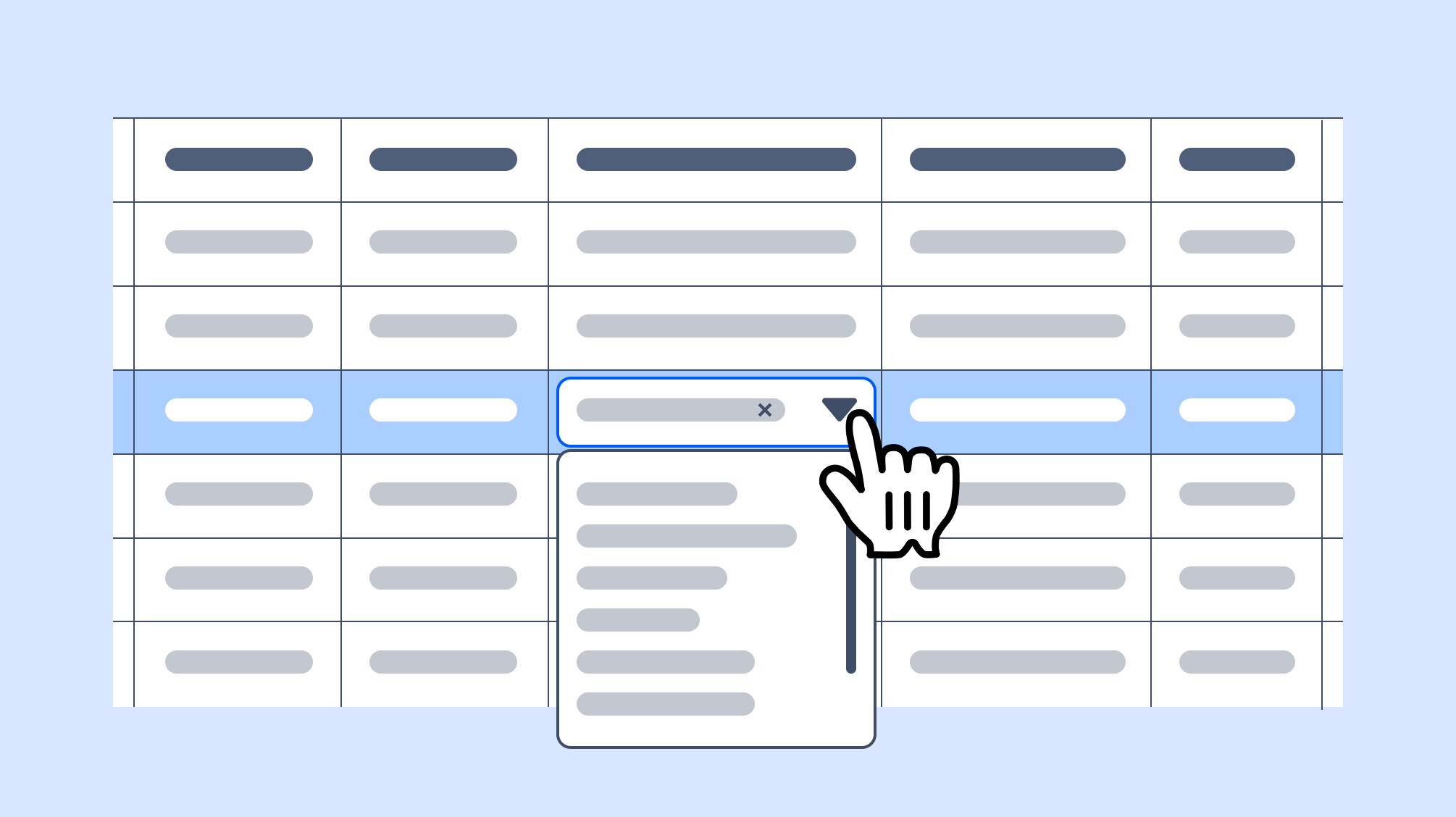
The Grid now supports single-value and multi-value Lookup columns. In addition, Predecessor Lookup columns have addition functionality to help prevent incorrect Predecessor selection.
Grid Calculate Schedule Action
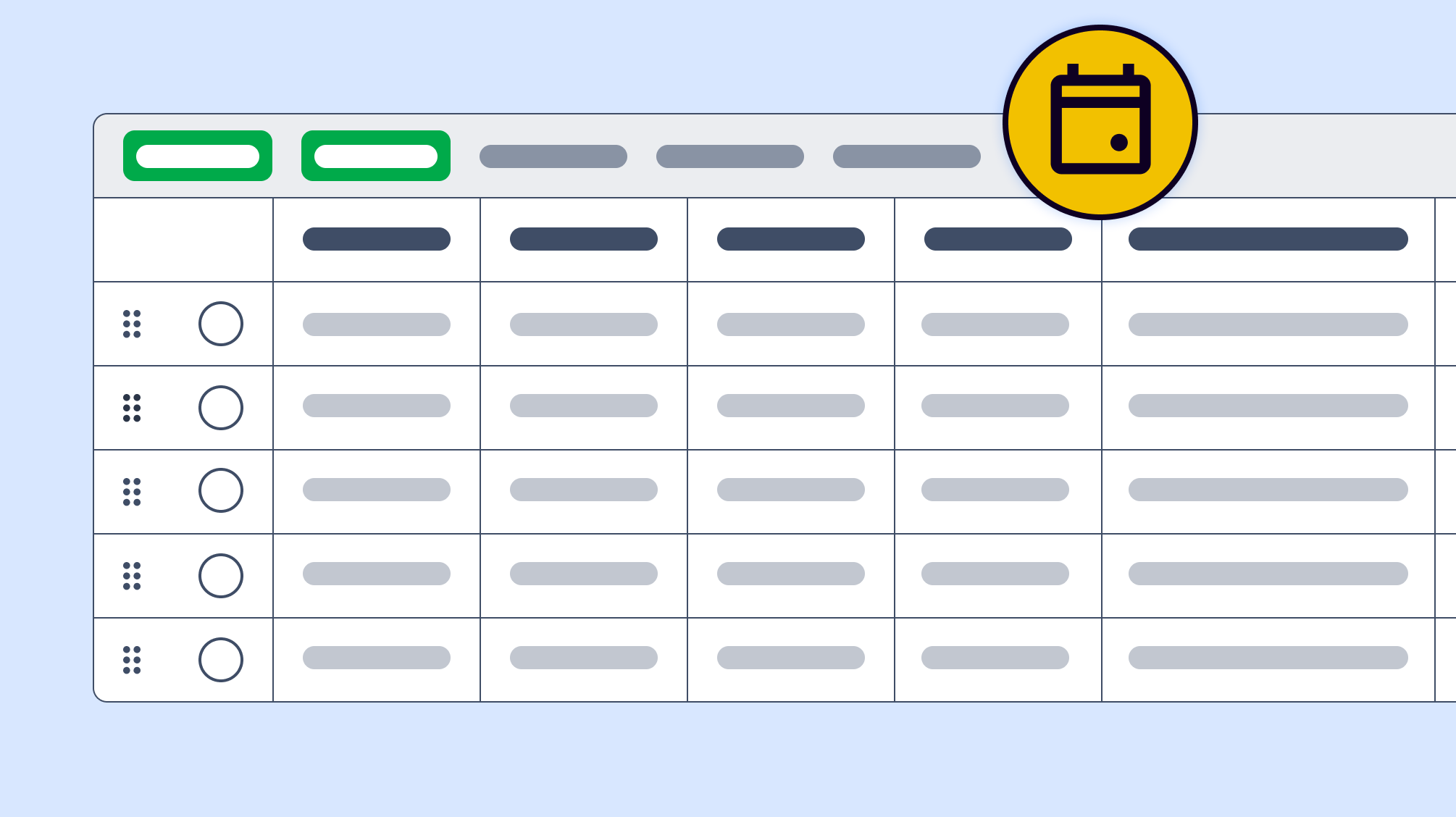
When task scheduling is enabled, the 'Calculate Schedule' action can be displayed in the Grid, making it easy to keep timelines accurate and up to date without leaving your workflow.
BrightWork Copy Site
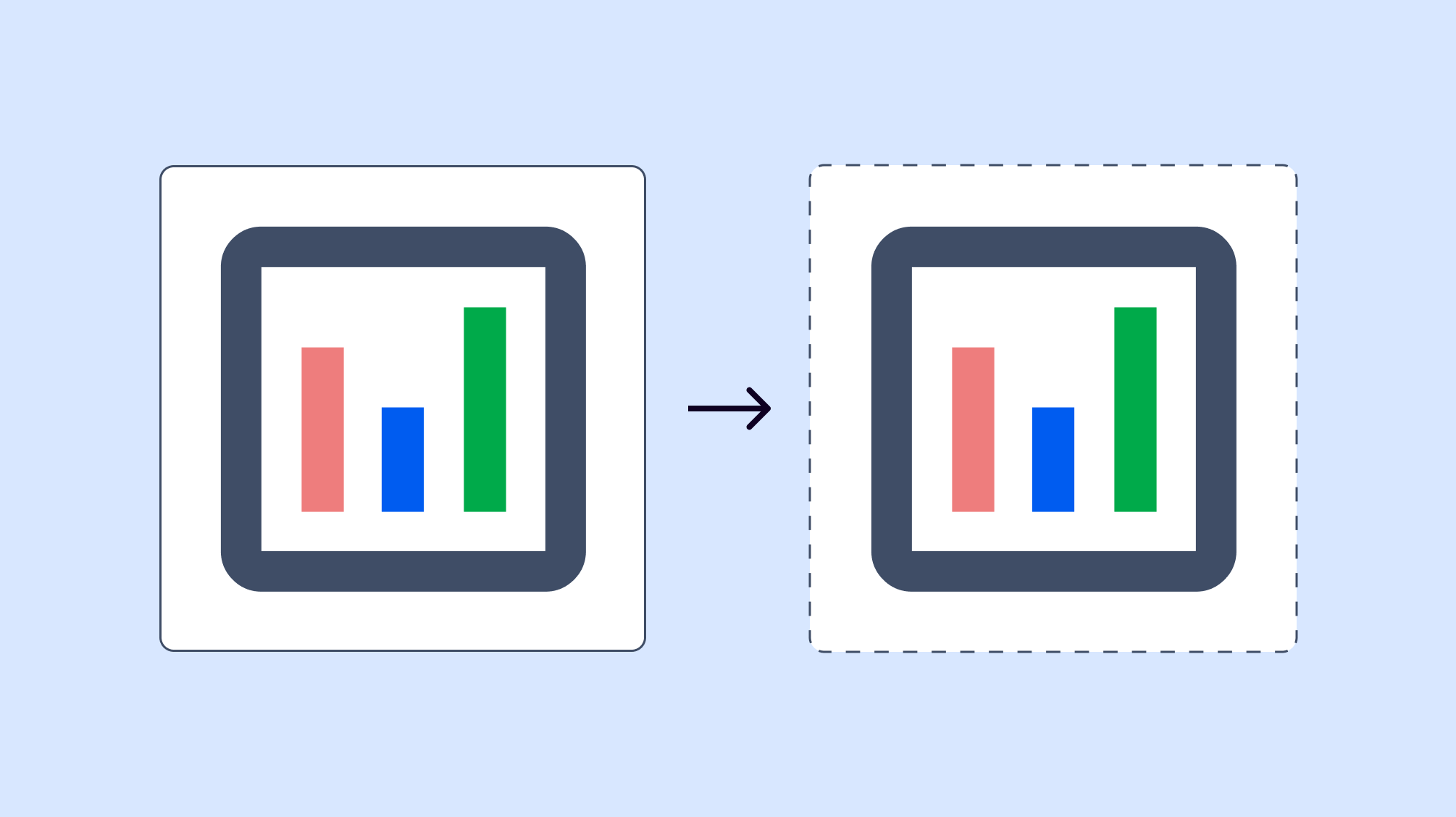
To prevent the inclusion of broken links in site copies, navigation links added by the SharePoint Publishing Infrastructure feature will no longer be copied when using BrightWork Copy Site functionality.
How can I upgrade BrightWork?
If you want to upgrade to the latest version of BrightWork, visit the Product Download area of the BrightWork Success website.
Choose the version of SharePoint you are on and select Browse Download.
If you are logged into the website and have product download access you will be brought to the relevant product download site for that version of SharePoint.
If you are not logged in you will be brought to a request form where you can either log in or request product download membership. Product Downloads are for customers who have an active support and upgrade plan.
Use the instructions on the Upgrade BrightWork page to start upgrading to the latest BrightWork version.
If you are installing for the first time, then use the instructions on the Install BrightWork page.
How can I activate the new features?
Most new features are available automatically with this release. Changes applied in a Template can be Design Synced to project sites.
All changes to the Project Standard template will not appear automatically in existing
Project Standard template sites.
The following are the changes made to the Project Standard template to consider adding to existing Project Standard sites:
Task Reports contains the following additional reports:
- All Items Grid
- Active Items Grid
- My Items Grid
How can I purchase additional licenses?
If you are interested in purchasing additional Named User Licenses, please contact Customer Success. Our Business Operations team will be happy to provide you with upgrade options, pricing and/or formal proposals.
How can I find my BrightWork version number?
- On your BrightWork home page, click the settings icon
 in the top right, then click Site settings.
 - At the bottom of the page, click BrightWork Settings.
- You will now see the Version number.
How can I find my license key?
Contact Support with the FARM GUID to receive a copy of the license key.
How can I renew my BrightWork support and upgrade plan?
Support and upgrade plans are renewed on an annual basis. You will be contacted approximately 45 days prior to the expiration of your plan with the details required to start the renewal paperwork process. If your main contact has changed or you would like to start the process earlier, please contact Customer Success.
How can I find my farm ID?
If BrightWork is not installed, this BrightWork Support blog post can help you.
If you have BrightWork already installed, in SharePoint Central Administration, click General Application Settings and then click Manage BrightWork License.