Project Tasks
Use the Project Tasks list to specify, assign, and track project related tasks in a hierarchy. The Project Tasks list is used extensively in BrightWork, including in the Project Lite, Project Standard, Project Structured, Work Tracker, Project and Work Tracker, and Task Tracker templates.
The Tasks list (List Type 171) is a not a BrightWork list, it is a SharePoint list. However, a number of unique BrightWork features are available in the list settings. To access click List | List Settings in the ribbon.
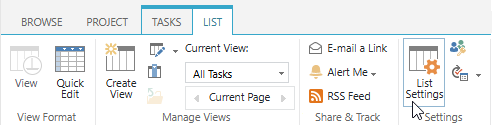
BrightWork List Settings
Column Visibility Settings
Column visibility settings allows you to configure the new, edit, and read forms visibility settings of columns in a list. You can also completely hide a column without the need to delete it.
Task Scheduling
Task Scheduling allows you to apply simple scheduling to your tasks. This can be enabled from the Task Scheduling page.
Advanced Settings
Advanced settings allow you to decide between showing Sections or not showing Sections in all Grids using the list. It also provides the interface to configure pill style colors.
Grid Sections
Enable Sections
Enable or disable Grid Sections in Grids referencing the Project Tasks list.
Sections are enabled or disabled for a Task list and not for individual Grids. Therefore, when enabled, all Grids referencing the Task list will show the top level tasks in the hierarchy as Sections, with only the Title column value displayed. When disabled, the tasks are shown as normal tasks with all column values displayed. The actions available to create new tasks and subtasks will also change depending on the setting.
Configure Choice Column Pill Style Colors
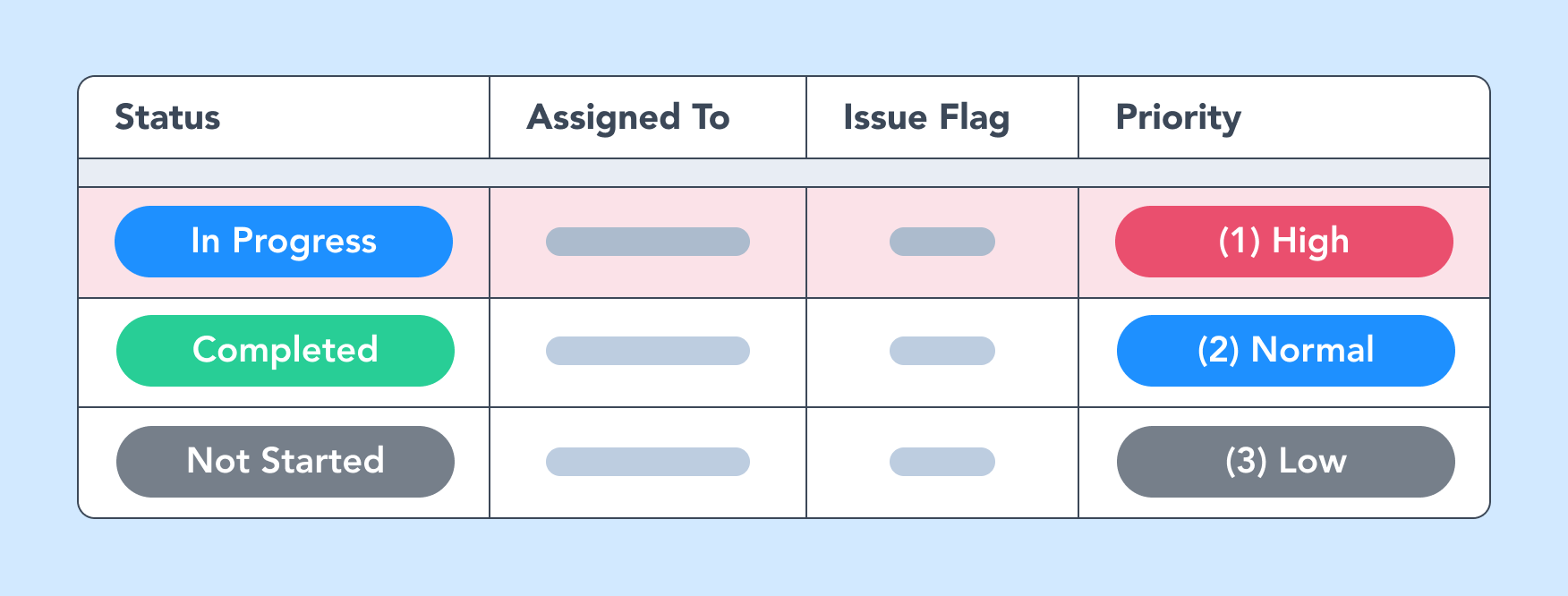
Choice columns are displayed under the Grid Sections heading. Each Choice column is in its own collapsible grouping. Expanding the group displays:
- Choice value: each choice value available.
- Background: a color picker allowing selection of the choice pill style color.
- Text: a color picker allowing selection of the choice pill style text color.
Default colors are set for choice columns depending on the choice column.
If more values exist than there are default colors then the sequence restarts again.
For example, there are 10 Status value color defaults.
If there are 11 Status values, then the first and eleventh Status value colors will be the same.
The following are the color palettes used:
-
Status: 10 different values supported by default.

-
Priority: 10 different values supported by default.

-
Status Indicator: 10 different values supported by default.

-
Choice Columns: 20 different values supported by default.

The columns will be displayed in a colored pill style. The exception is in BrightWork Reporter for columns configured either as Link columns or Grouped columns. In these instances the values will not have pill styling.
To print BrightWork Reporter reports using colors you need to enable Background Graphics in print settings. Note that the colored cells will print in a block style and not a pill style.
Project Tasks Alert Options
The Project Tasks list has the following alert options:
- Anything changes
- I am made owner of a Task
- A Task is assigned to me
- A Task becomes complete
- A high priority Task changes
- Someone else changes a Task owned by me
- Someone else changes a Task assigned to me
- Someone else changes a Task
- Someone else changes a Task created by me
- Someone else changes a Task last modified by me
- Someone changes an item that appears in the following view: select a view